
Published: December 4, 2025
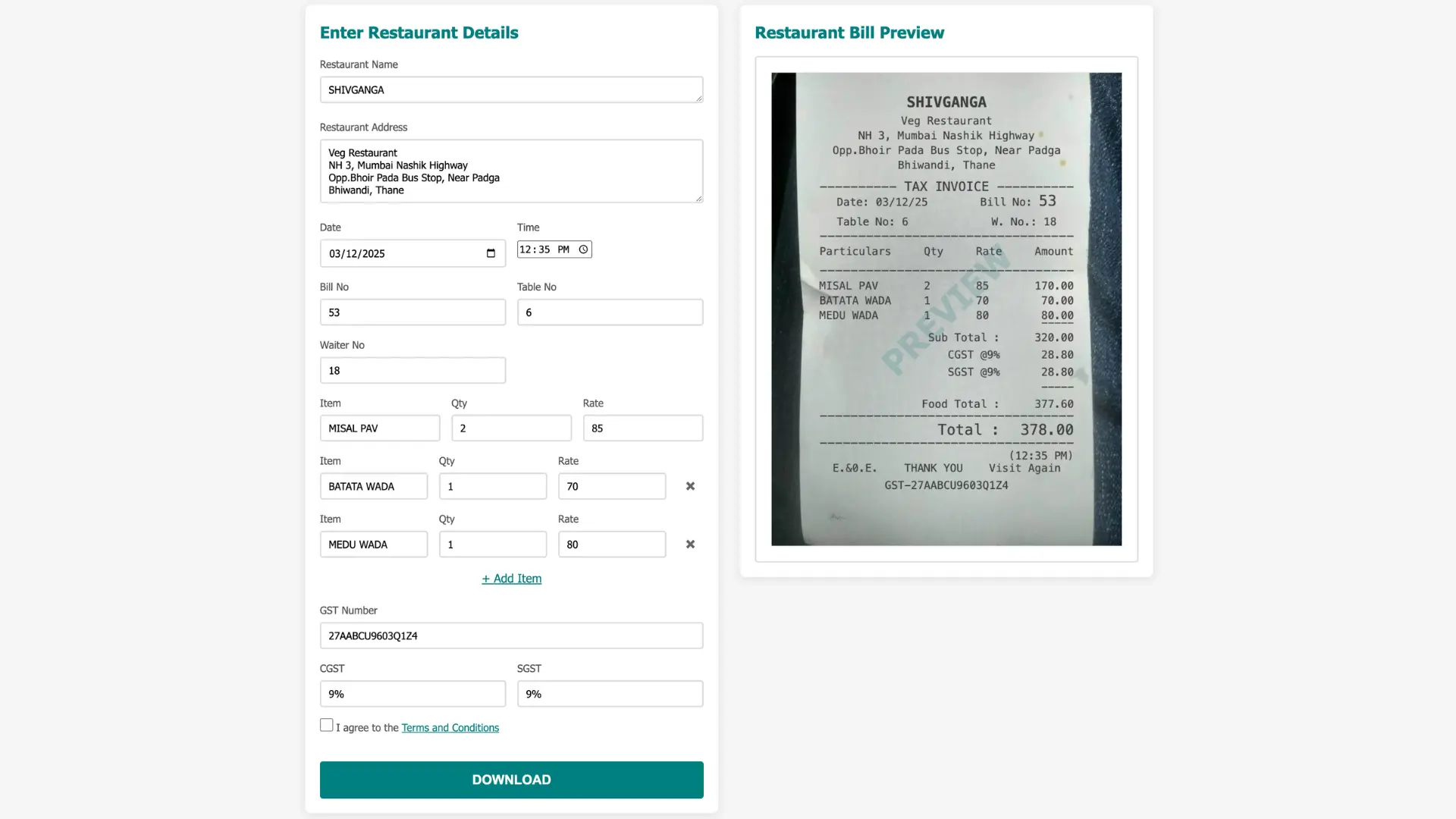
If you need to know how to edit restaurant bill, you've come to the right place. Our free online restaurant bill editor makes it simple to modify any restaurant bill, whether you need to change items, update prices, adjust GST, or correct any information. This comprehensive guide will walk you through the entire process step by step.
Table of Contents
Introduction: Why You Might Need to Edit Restaurant Bill
There are many reasons why you might need to edit restaurant bill. Perhaps you made a mistake while entering items, need to add or remove food items, want to update prices, or need to modify GST calculations. Whatever the reason, our restaurant bill editor allows you to make changes quickly and easily without starting from scratch.
The best part? You can edit restaurant bill as many times as you want before downloading. All changes are made in real-time, and you can preview your updated bill instantly to ensure everything is correct.
How to Edit Restaurant Bill: Step-by-Step Instructions
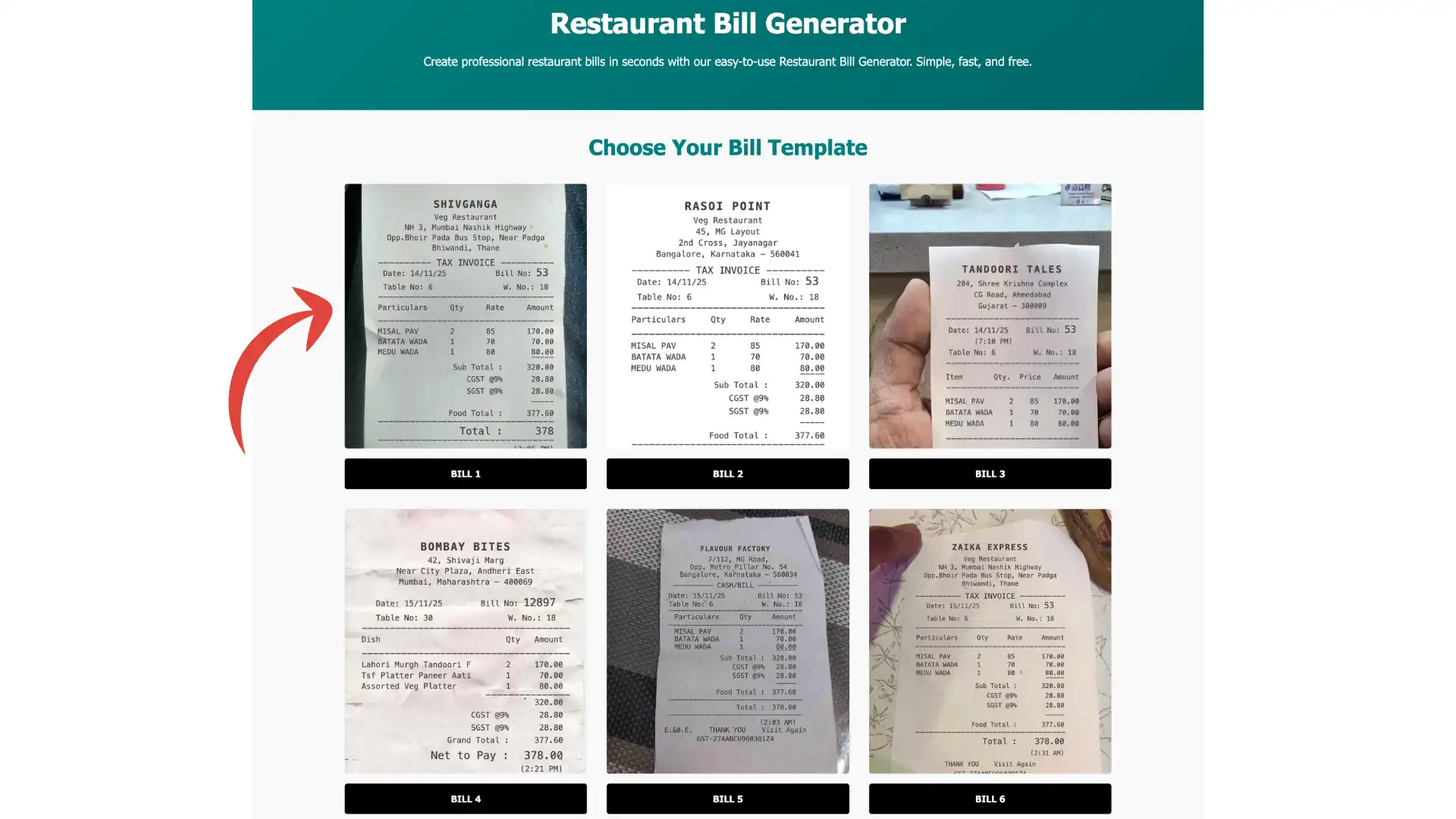
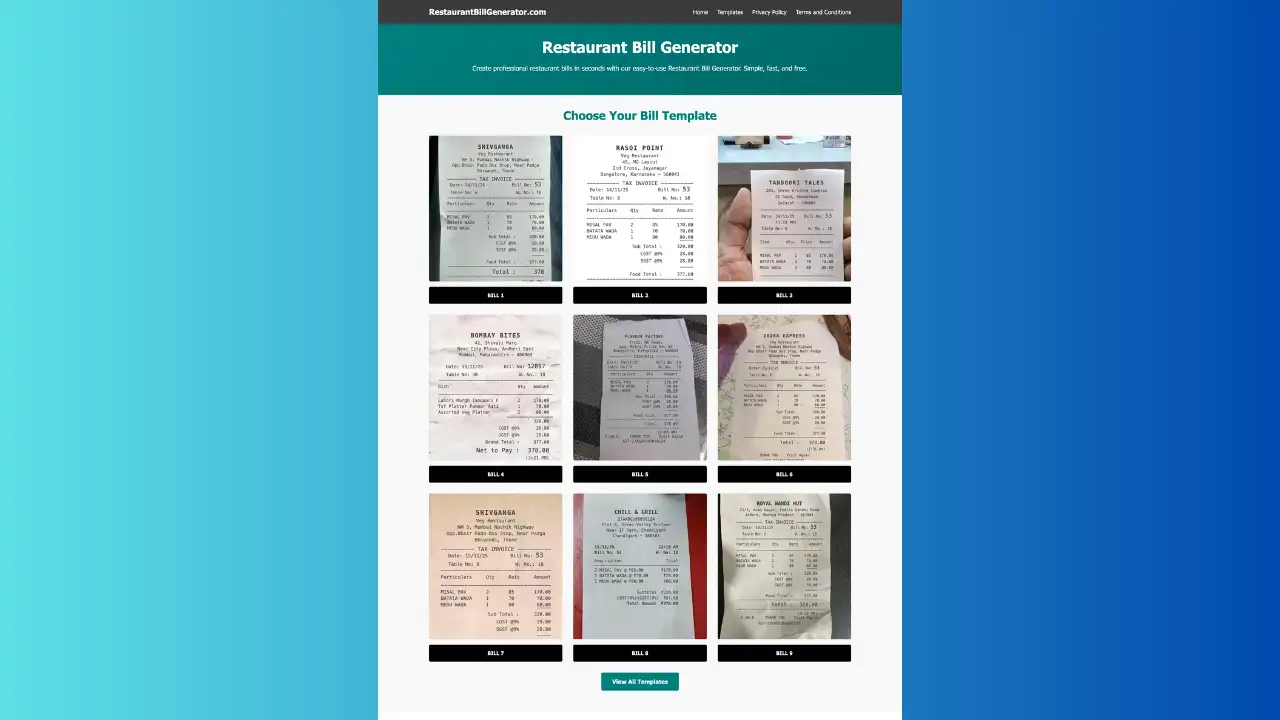
Step 1: Select Your Bill Template
To begin editing a restaurant bill, visit our bill generator to start creating your restaurant bill.
Once you've selected your template, you'll be taken to the bill generator page where you can start creating or editing your restaurant bill.
Step 2: Modify Restaurant Details
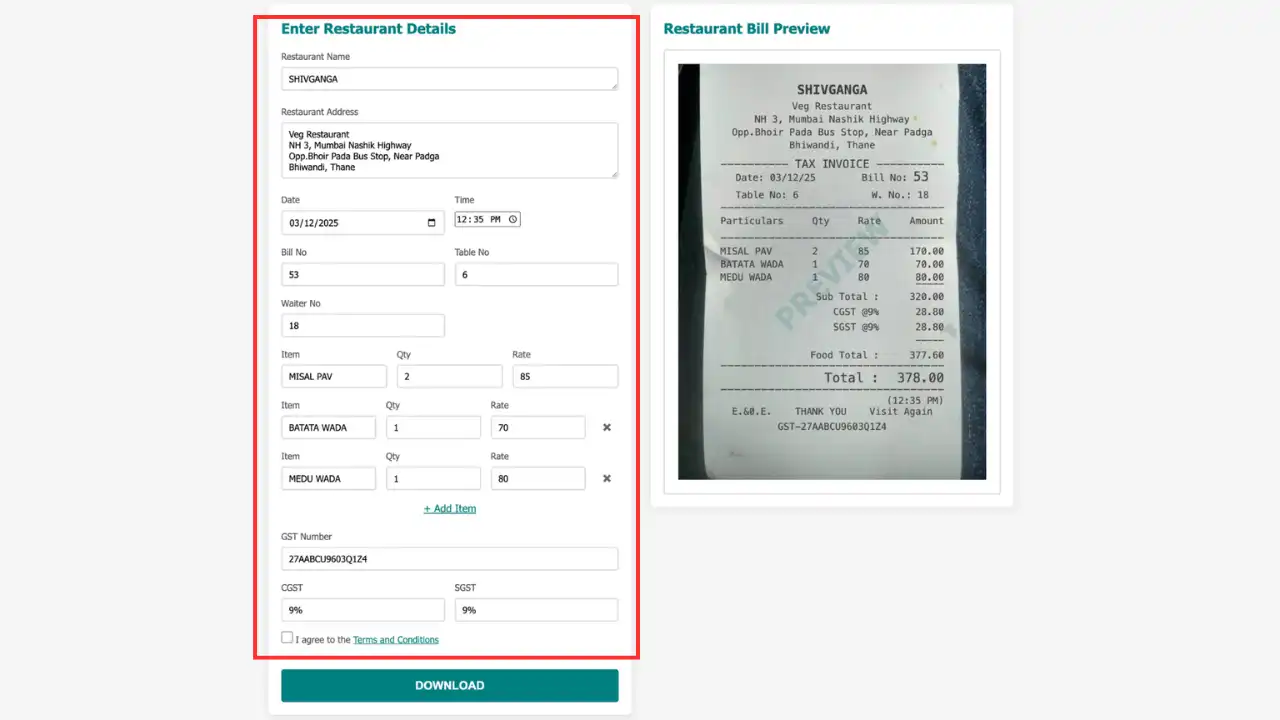
When you need to edit restaurant bill details, start by updating the restaurant information section. You can modify:
- Restaurant Name: Click on the restaurant name field and type your updated name
- Address: Update the restaurant address if it has changed
- Mobile Number: Edit the contact number as needed
- GST Number: Add or modify the GST registration number
All changes are reflected immediately in the preview section, so you can see your updates in real-time as you type.
Step 3: Edit Customer or Table Information
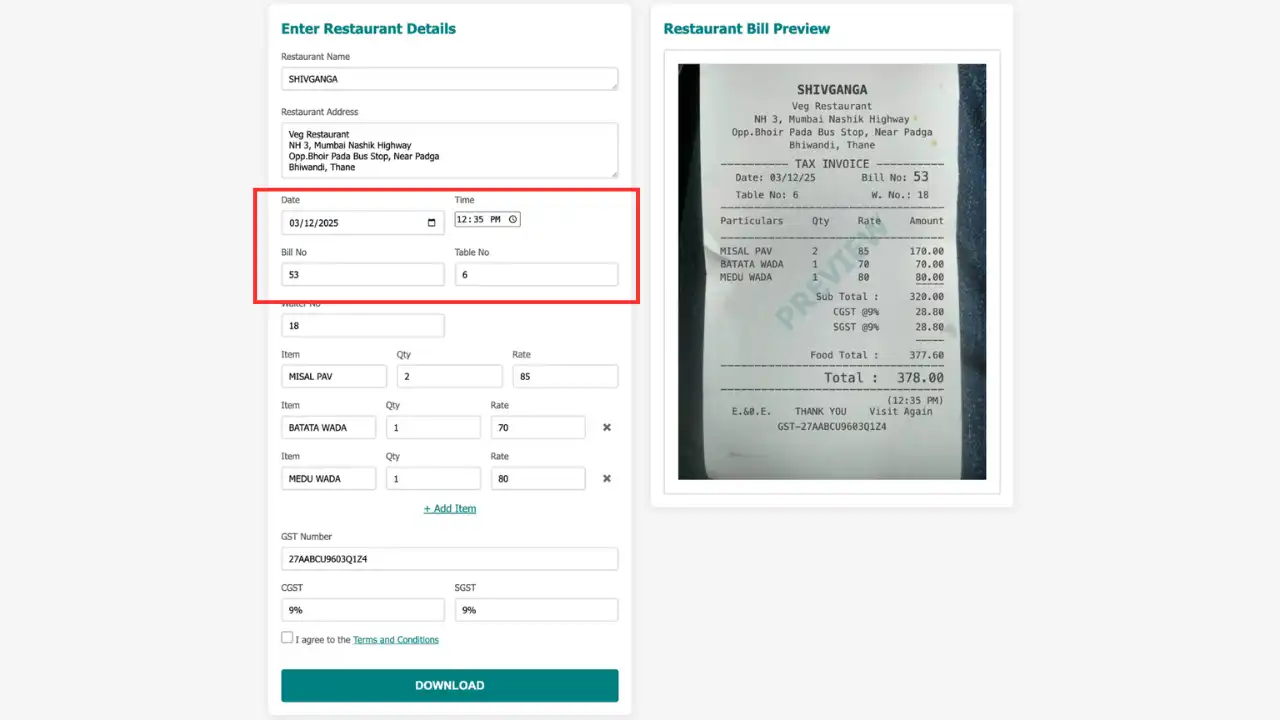
To edit restaurant bill customer information, locate the customer details section. Here you can update:
- Invoice Date: Change the date if you need to correct it
- Table Number: Update the table number for dine-in orders
- Customer Name: Modify the customer name field
- Invoice Number: Edit the invoice or bill number if needed
These fields are optional, so you can leave them blank if they don't apply to your bill. However, including them makes your bill more professional and complete.
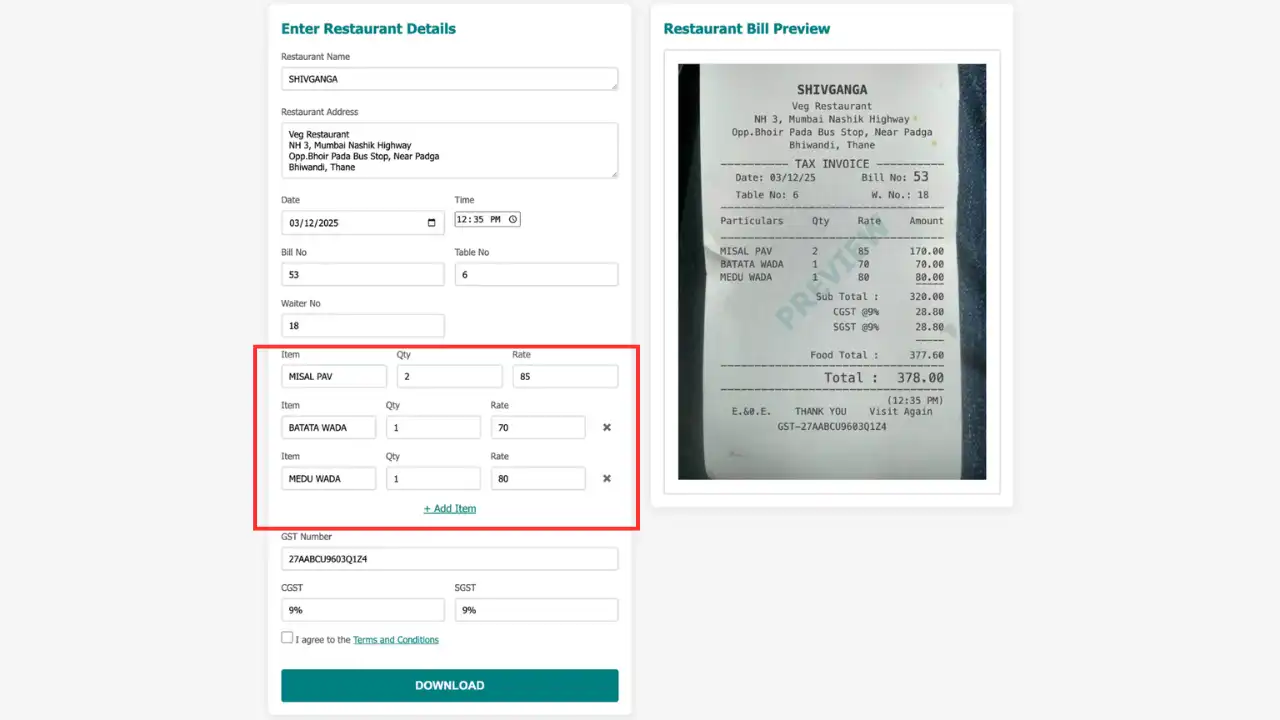
Step 4: Update Food Items - Add, Remove, or Modify
One of the most common reasons to edit restaurant bill is to modify the food items. Our restaurant bill editor makes this easy:
To Edit an Existing Item:
- Find the item you want to edit in the items list
- Click on the item name, quantity, or price field
- Type your changes directly
- The bill will automatically recalculate totals
To Add a New Item:
- Click the "Add Item" or "+" button
- Enter the item name in the new row
- Enter the quantity
- Enter the price per unit
- The system automatically calculates the total for that item
To Remove an Item:
- Find the item you want to remove
- Click the delete or remove button (usually an "X" or trash icon) next to that item
- The item will be removed and totals will update automatically
You can add unlimited items to your bill, and the restaurant bill editor will automatically calculate subtotals, item totals, and the final amount.
Step 5: Adjust GST Settings
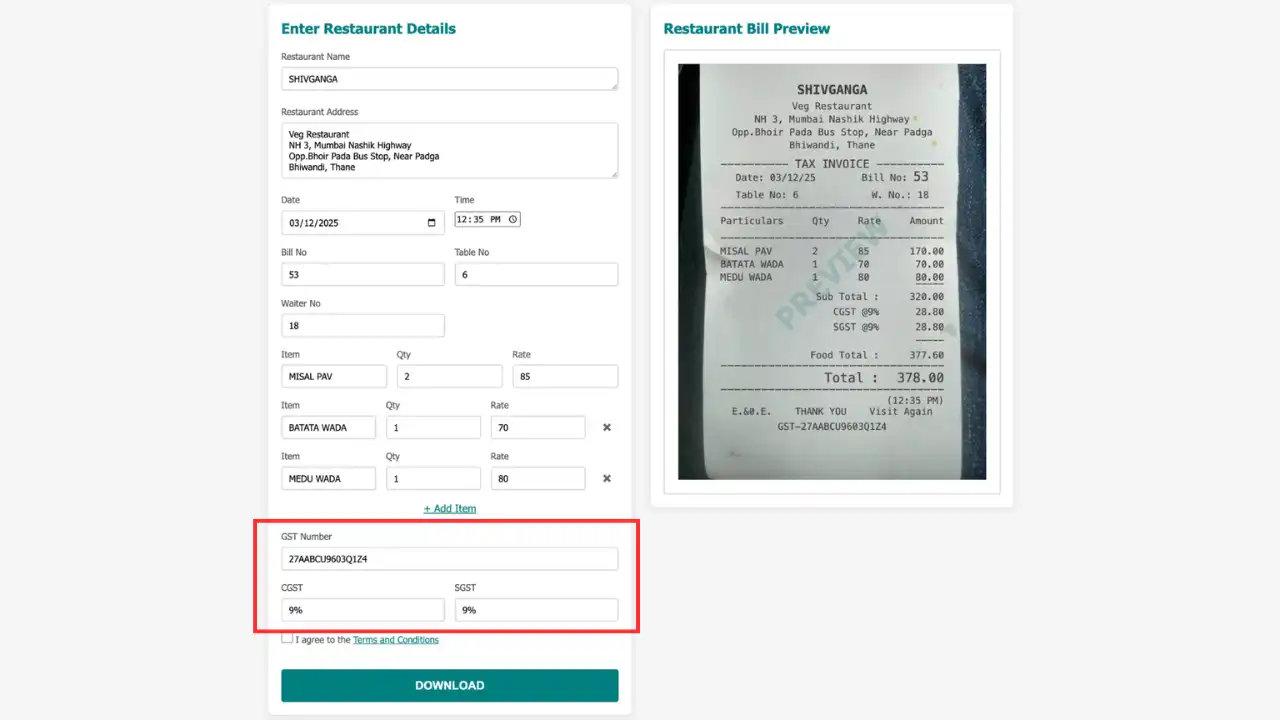
If you need to edit restaurant bill GST calculations, our tool makes it simple:
- Enable GST: If GST wasn't enabled initially, check the GST option to add tax calculations
- Disable GST: Uncheck the GST option if you need to remove GST from the bill
- GST Calculation: The system automatically calculates CGST (Central GST) and SGST (State GST) when GST is enabled
When you enable GST, the restaurant bill editor automatically calculates 9% CGST and 9% SGST (for an 18% total GST rate) on the subtotal. The final total includes all taxes, so you don't need to do any manual calculations.
Step 6: Preview Your Changes
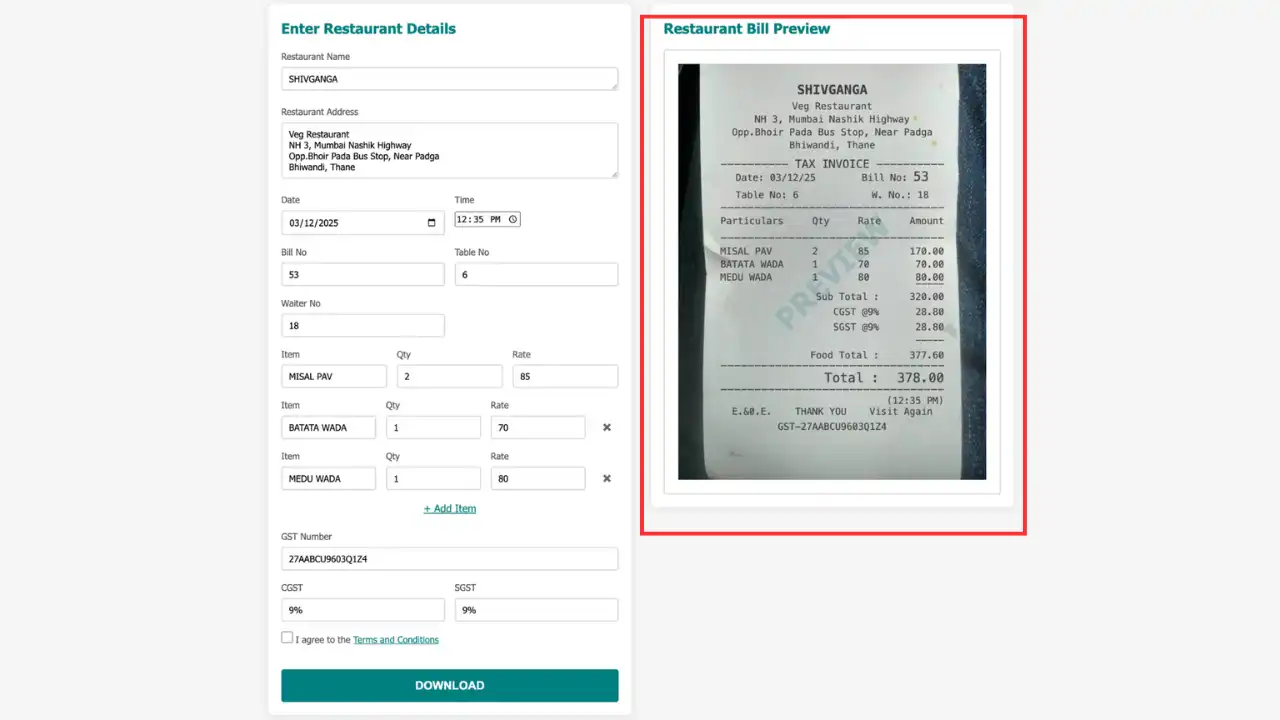
After making changes to edit restaurant bill, always preview your updated bill before downloading. The preview section shows exactly how your bill will look when downloaded, including:
- All restaurant details
- Customer information
- Complete itemized list
- Subtotal, GST breakdown, and final total
- Professional formatting
Review the preview carefully to ensure all information is correct. If you notice any errors, simply go back and make additional edits. You can preview and edit as many times as needed.
Step 7: Download Your Edited Restaurant Bill
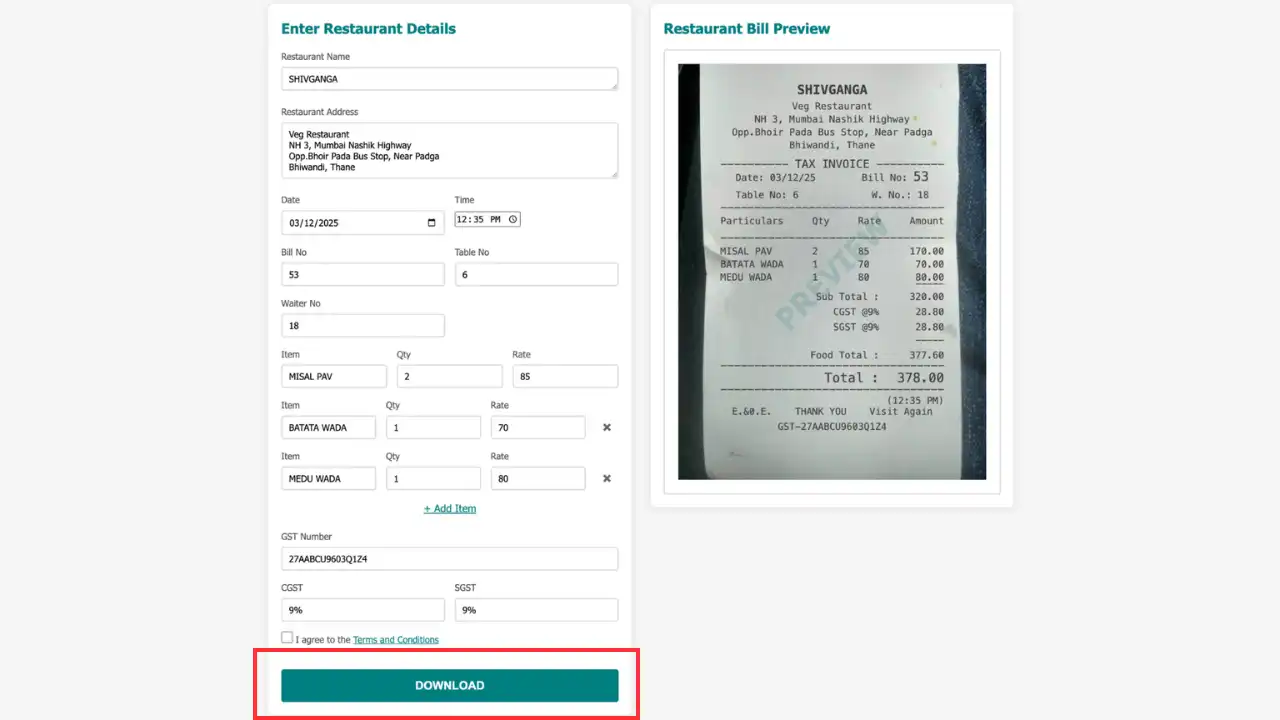
After generating your updated bill, click the "Download" button to save your edited restaurant bill as a high-quality JPG image. The downloaded file will include all your changes and can be used for:
- Printing physical copies
- Emailing to customers
- Digital record-keeping
- Sharing on social media or apps
- Including in presentations or projects
The downloaded JPG file is high-resolution and maintains professional quality, ensuring your edited restaurant bill looks great in any format.
Tips for Editing Restaurant Bills Effectively
- Double-check all numbers: When you edit restaurant bill, always verify quantities and prices to avoid calculation errors
- Save frequently: While our tool doesn't require saving (it's all in your browser), you can download a copy after major edits as a backup
- Use the preview: Always use the preview function before downloading to catch any mistakes
- Edit multiple times: Don't worry about making multiple edits - you can modify your bill as many times as needed
- Check GST calculations: If you enable or disable GST, verify that the tax amounts are correct
- Verify totals: Make sure the final total matches your expectations before downloading
Common Scenarios: When You Need to Edit Restaurant Bill
Scenario 1: Correcting a Typo in Item Name
If you made a spelling mistake in an item name, simply click on the item name field and correct it. The restaurant bill editor allows you to edit any field directly.
Scenario 2: Changing Item Quantity
To change the quantity of an item, click on the quantity field and enter the new number. The total for that item and the overall bill total will update automatically.
Scenario 3: Adding Forgot Items
If you forgot to add an item, use the "Add Item" button to insert a new row. Enter the item details, and it will be added to your bill with automatic calculations.
Scenario 4: Removing Unwanted Items
To remove an item you no longer need, click the delete button next to that item. The bill will recalculate totals immediately.
Scenario 5: Updating GST Information
If you need to add or remove GST from your bill, simply toggle the GST option. The restaurant bill editor will automatically recalculate all tax amounts and the final total.
Frequently Asked Questions About Editing Restaurant Bills
Can I edit restaurant bill after generating it?
Yes! You can edit restaurant bill as many times as you want before downloading. Simply make your changes in the form fields, and the preview will update in real-time. You can regenerate and download the updated bill whenever you're ready.
Do I need to start over if I make a mistake?
No, you don't need to start over. Our restaurant bill editor allows you to modify any field at any time. Just click on the field you want to change and update it. All calculations will update automatically.
How do I edit restaurant bill GST calculations?
To edit restaurant bill GST, simply enable or disable the GST option in the form. When enabled, the system automatically calculates CGST and SGST. When disabled, the bill will show no GST. The totals update automatically based on your selection.
Can I add unlimited items when editing a bill?
Yes, our restaurant bill editor supports unlimited items. You can add as many food items as you need, and the system will automatically calculate all totals correctly.
Is it free to edit restaurant bill multiple times?
Absolutely! Our restaurant bill editor is easy to use. You can edit restaurant bill as many times as you want, generate unlimited bills, and download them all.
Conclusion
Learning how to edit restaurant bill is simple with our free online restaurant bill editor. Whether you need to modify items, update prices, adjust GST, or correct any information, our tool makes it easy to make changes and generate updated bills instantly.
Remember, you can edit restaurant bill as many times as needed before downloading. All changes are reflected in real-time, and the system automatically handles all calculations, so you don't have to worry about math errors.
Ready to create or edit your restaurant bill? Start generating professional restaurant bills today!

.webp)
.webp)
.webp)